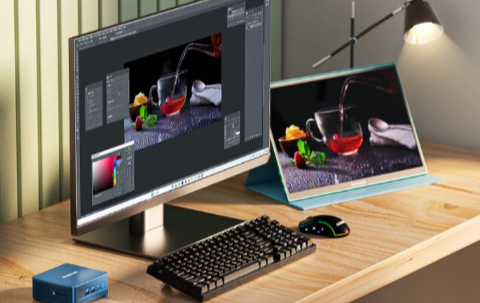
Introduction: Why Australians Are Rethinking Their Home Office Setup
Working from home is no longer a temporary arrangement for most Australians — it has become a permanent lifestyle. According to the Australian Bureau of Statistics, nearly 40% of employed Australians regularly work from home, a figure that has more than doubled since 2019. With that shift comes a very practical question: what is the best computer setup for a productive, comfortable, and cost-effective home office?
For a long time, the answer was either a clunky desktop tower or a laptop with its compromised ergonomics. But in recent years, a third option has surged in popularity — the mini PC. Small enough to sit behind a monitor or hide on a shelf, yet powerful enough to handle everything from video conferencing and spreadsheets to video editing and light gaming, mini PCs are quietly transforming how Australians work from home.
This guide walks you through everything you need to build the perfect mini PC home office setup in Australia — from choosing the right machine to picking the best peripherals, optimising your desk layout, and making sure your investment lasts for years to come.
Key Takeaways
- Mini PCs are rapidly replacing traditional desktops in Australian home offices due to their compact size, energy efficiency, and impressive performance.
- A well-planned mini PC setup can boost productivity, reduce clutter, and lower electricity bills significantly.
- Choosing the right hardware, peripherals, and ergonomic accessories is just as important as the computer itself.
- Australian remote workers and freelancers are among the fastest-growing adopters of compact computing solutions.
- Reliable after-sales support, warranty coverage, and local shipping are critical factors when buying a mini PC in Australia.
What Is a Mini PC — and Why Does It Make Sense for a Home Office?
A mini PC is essentially a full desktop computer that has been engineered to fit into a tiny chassis — often no bigger than a hardback book or, in some cases, smaller than a lunchbox. Despite its small footprint, a modern mini PC can pack the same processing power as mid-to-high-range traditional desktops.
For a home office, this matters for several reasons:
- Space saving: A mini PC frees up your entire desk surface, which is especially important in smaller Australian apartments and townhouses.
- Energy efficiency: Mini PCs typically consume between 10 and 35 watts under normal workloads, compared to 100–300 watts for a traditional desktop tower. Over a year, that difference adds up noticeably on your power bill.
- Silent operation: Most modern mini PCs run whisper-quiet, which is a genuine comfort advantage when you are on video calls all day.
- Easy cable management: With fewer ports to manage and a smaller body to mount, your desk stays clean and professional-looking.
- Portability: If you occasionally work between rooms, or need to take your setup to a co-working space, a mini PC fits easily in a backpack.
Why GEEKOM Is a Top Choice for Australian Home Office Users
When it comes to sourcing a reliable, high-performance mini PC in Australia, Geekom stands out as one of the most trusted names in the market. With dedicated Australian warehousing, free local shipping, a 3-year limited warranty, and a 30-day return or exchange policy, Geekom has built a strong reputation among remote workers, freelancers, content creators, and small business owners across the country.
What makes Geekom particularly appealing is its range. Whether you need an entry-level machine for basic office tasks or a powerhouse device capable of running multiple 4K displays and AI-assisted workloads, Geekom has a model designed for that exact use case. The lineup includes both Intel and AMD-powered options, ensuring buyers can match their specific workflow needs with the right processor architecture.
Geekom models have been reviewed and recommended by some of the world’s most respected technology publications, including Forbes and several leading European hardware award bodies. Notably, the Geekom A6 received recognition as the Best Value Desktop System at the European Hardware Awards 2025 — a meaningful endorsement for Australian buyers who want premium performance without a premium price tag.
Their newest releases, such as the IT15 AI Mini PC featuring an Intel Core Ultra 2nd Gen processor, and the A9 Max running an AMD Ryzen AI 9 HX 370 chip, push the boundaries of what a compact desktop can do. These machines support up to 128GB of DDR5 RAM, Wi-Fi 7, Bluetooth 5.4, and can drive up to four 4K displays simultaneously — specs that rival dedicated workstations costing two to three times as much.
Building Your Perfect Mini PC Home Office: A Step-by-Step Guide
Step 1: Define Your Workload
Before you buy anything, be honest about what you actually do on your computer every day. Home office setups are not one-size-fits-all.
| Workload Type | Recommended Specs |
| Email, documents, video calls | 16GB RAM, 512GB SSD, modern dual-core or quad-core CPU |
| Multitasking, spreadsheets, CRM | 32GB RAM, 1TB SSD, 6–8 core CPU |
| Video editing, graphic design | 32–64GB RAM, 2TB SSD, dedicated or high-end integrated GPU |
| Software development, data work | 64GB+ RAM, 2TB SSD, high-core-count CPU |
| Light gaming after hours | AMD Radeon 780M or 890M integrated graphics, 32GB RAM |
Step 2: Choose Your Mini PC
Once you know your workload, select a mini PC that comfortably exceeds those requirements. A good rule of thumb is to buy slightly above your current needs, so the machine stays relevant for at least three to four years.
For most Australian home office workers, a machine in the mid-range tier — around $400 to $700 AUD — hits the sweet spot of performance and value. Geekom’s A-series and IT-series models fall squarely in this range and offer excellent upgrade potential, with user-accessible RAM and SSD slots in most configurations.
Step 3: Set Up a Proper Monitor (or Two)
One of the biggest productivity upgrades you can make in a home office is moving to a dual-monitor setup. Studies from the University of Utah have found that dual monitors can increase productivity by up to 44% for tasks involving reference material. A good mini PC supports this effortlessly.
Here is what to look for in a home office monitor:
- Size: 24 to 27 inches is ideal for most desk sizes. Going up to 32 inches works well if you have the space.
- Resolution: At minimum, 1080p (Full HD). For sharp, comfortable text reading, 1440p (QHD) is noticeably better. For creative professionals, a 4K display makes a significant difference.
- Panel type: IPS panels offer the best colour accuracy and viewing angles for office work.
- Eye care features: Look for flicker-free and low blue light certifications, especially if you work eight or more hours a day.
Most mid-to-high-range mini PCs support two or more external displays simultaneously via HDMI and DisplayPort or USB-C outputs. The Geekom GT1 Mega, for example, can drive up to four 4K displays and even supports 8K resolution — an exceptional capability for a machine of its size.
Step 4: Choose the Right Peripherals
A mini PC powers your setup, but your peripherals shape the experience. Here are the essentials:
Keyboard and Mouse
- For all-day typing comfort, invest in a tenkeyless or full-size mechanical keyboard, or a high-quality membrane keyboard with good key travel.
- A wireless mouse reduces cable clutter and gives you flexibility to reposition.
- Ergonomic options (split keyboards, vertical mice) are worth considering if you experience wrist or shoulder fatigue.
Webcam and Microphone
- If your mini PC does not have a built-in camera (most do not, since it is a desktop), invest in a 1080p or 4K external webcam.
- A USB condenser microphone or a quality headset with a noise-cancelling mic will make your video calls sound professional and clear.
Headphones or Speakers
- Open-back headphones are great for focus work; closed-back for calls.
- A compact Bluetooth speaker works well for casual listening and hybrid calls.
USB Hub or Docking Station
- A mini PC typically offers four to six USB ports, which can fill up quickly with peripherals. A USB-C hub or a powered USB-A dock gives you the extra ports you need without mess.
Step 5: Optimise Ergonomics
Poor ergonomics is one of the leading causes of work-related discomfort and injury among remote workers in Australia. Safe Work Australia recommends that your monitor be at arm’s length and positioned so the top of the screen is at or just below eye level.
Ergonomics checklist for your mini PC home office:
- Monitor on a height-adjustable stand or monitor arm
- Keyboard and mouse at elbow height, allowing a 90-degree arm bend
- Chair with lumbar support, seat depth adjustment, and adjustable armrests
- Feet flat on the floor or supported by a footrest
- Screen tilt angled slightly away from you to reduce neck strain
- Adequate lighting — natural light to one side, a desk lamp for evening work
A monitor arm is one of the most underrated upgrades you can make. It allows you to reposition your screen for different tasks, frees up desk space, and works brilliantly with the slim profile of a mini PC setup.
Step 6: Manage Your Cables and Desk Space
One of the biggest visual and functional benefits of a mini PC setup is how easy it is to keep tidy. With just a power cable and a few peripheral connections to manage, you can achieve a clean, focused workspace with minimal effort.
Practical tips:
- Use a cable management tray mounted under your desk to hide power strips and cable runs.
- Consider a VESA-mount adapter to attach your mini PC directly to the back of your monitor — some Geekom models come with a VESA mount included.
- A small monitor stand with built-in cable routing can conceal USB hubs and charging cables neatly.
- Wireless peripherals (keyboard, mouse, headphones) eliminate most cables entirely.
Step 7: Ensure a Fast and Stable Internet Connection
A mini PC is only as good as your internet connection when you are working remotely. For seamless video calls, cloud collaboration, and file uploads, aim for a minimum of 25 Mbps download and 10 Mbps upload. If your home Wi-Fi signal is inconsistent, a wired Ethernet connection is always the more reliable option.
Most modern mini PCs include a Gigabit or 2.5G Ethernet port, meaning they can take full advantage of NBN 250 or 1000 plans when connected directly to your router.
Real-World Use Case: A Freelance Designer in Melbourne
Consider the experience of a freelance graphic designer working from a two-bedroom apartment in Melbourne. Before switching to a mini PC setup, they were using a large desktop tower that dominated their small study. After transitioning to a compact mini PC with a dual-monitor arm setup, they reported three immediate benefits: their desk felt twice as large, their electricity usage dropped noticeably, and they were able to mount the computer behind their secondary monitor to free up even more space. Their machine handles Adobe Creative Suite workloads without breaking a sweat, and the quiet fan operation means they no longer need to mute themselves during client calls.
This scenario is increasingly common across Australian cities, where home office spaces tend to be smaller and electricity costs are a genuine consideration.
Mini PC vs. Laptop for Home Office: Which Is Better?
Many Australians face this exact decision. Here is a quick comparison:
| Factor | Mini PC | Laptop |
| Performance per dollar | Higher | Lower |
| Screen real estate | Customisable (any monitor size) | Fixed (13–17 inches) |
| Ergonomics | Excellent with proper setup | Poor without accessories |
| Portability | Low (desktop-bound) | High |
| Upgrade potential | Moderate (RAM, SSD) | Low |
| Energy use | Very low (desktop use) | Low to moderate |
| Price for equivalent power | Better value | Premium |
For workers who are primarily desk-based, a mini PC almost always offers better value, better ergonomics, and a more comfortable long-term experience than a laptop. Many Australians actually pair a mini PC at home with a lightweight laptop for travel — getting the best of both worlds.
Frequently Asked Questions (FAQs)
Can a mini PC replace a full desktop computer for everyday home office use?
Yes, absolutely. Modern mini PCs are powerful enough to handle all standard office tasks including video conferencing, document editing, spreadsheets, email, light photo and video work, and web browsing — often with better performance per dollar than a traditional tower desktop.
How much should I budget for a home office mini PC setup in Australia?
For the mini PC itself, expect to spend between $300 and $800 AUD for a quality unit suitable for most home office workloads. Add another $200–$500 for a good monitor, and $100–$300 for peripherals (keyboard, mouse, webcam, headset). A complete, professional setup can be built for under $1,500 AUD.
Do mini PCs come with Windows pre-installed?
Most premium mini PCs, including many Geekom models available in Australia, come with Windows 11 Pro pre-installed, so you can be up and running immediately after unboxing.
How long do mini PCs typically last?
With quality components and reasonable workloads, a mid-to-high-range mini PC should remain productive for four to six years. Models with user-accessible RAM and SSD slots allow you to upgrade storage and memory as your needs grow, extending the useful life further.
Is a mini PC suitable for video calls and working from home full-time?
Yes. Mini PCs handle video conferencing on platforms like Zoom, Microsoft Teams, and Google Meet with ease. Pair yours with a quality external webcam and microphone for the best experience.
Can I connect multiple monitors to a mini PC?
Yes. Most modern mini PCs support at least two external displays via HDMI and DisplayPort or USB-C. Higher-end models, such as those in the Geekom GT and A9 series, can drive three or four 4K displays simultaneously.
What warranty and support should I expect when buying a mini PC in Australia?
Look for at least a one-year warranty as a minimum, though two to three years is preferable. Geekom Australia offers a 3-year limited warranty along with a 30-day return or exchange policy and 24/7 after-sales support — a strong coverage package for Australian buyers.
Final Thoughts: Is a Mini PC Home Office Setup Right for You?
If you work from home regularly, value a clean and organised desk, care about energy efficiency, and want a powerful computer without the bulk of a traditional tower, then a mini PC home office setup is one of the smartest investments you can make in 2026.
Australia’s remote work culture shows no signs of slowing down. As internet speeds improve, cloud tools mature, and mini PC hardware continues to advance, the case for compact desktop computing only gets stronger. Whether you are a freelancer in Sydney, a consultant in Brisbane, a designer in Melbourne, or a developer working remotely in Perth, the right mini PC setup will serve you quietly, reliably, and powerfully — day after day.
Start by understanding your workload, then choose a machine that meets it with room to grow. Invest in a quality monitor, ergonomic peripherals, and cable management, and you will have a home office that not only looks great but genuinely supports your best work.